
How to Read Hex Dump Output, Line by Line
How to read hex dump output: the offset, hex and text columns, byte order traps, hexdump -C, format strings, xxd and od, with 5 real examples you can run.
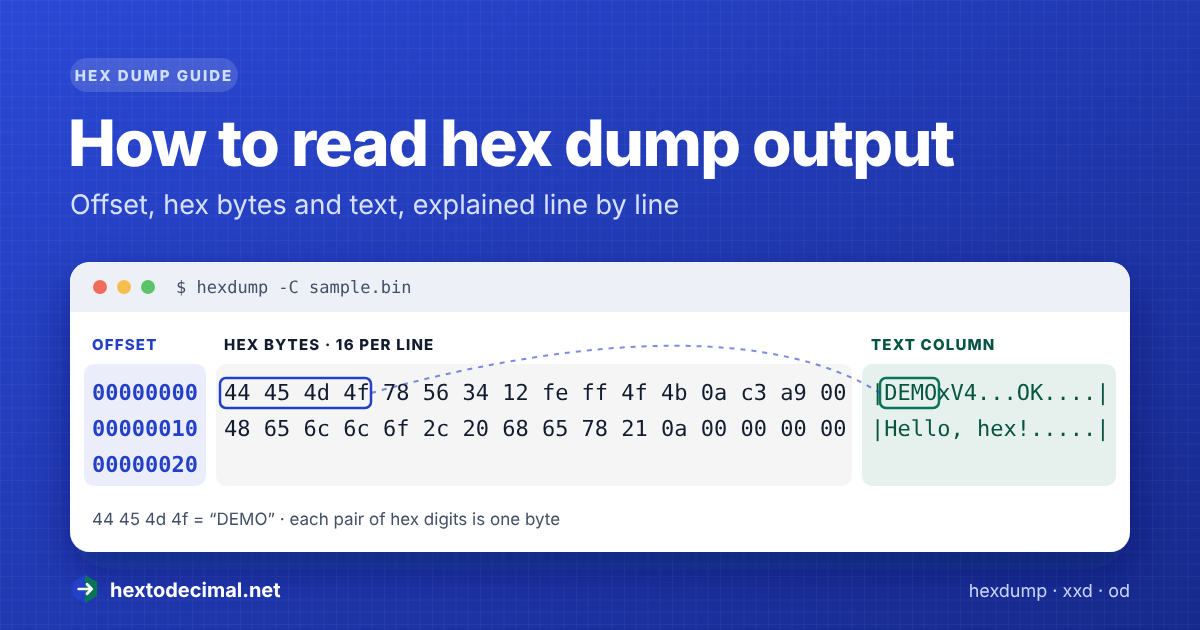
Table of Contents
To read a hex dump, read each line from left to right in three parts: the offset, the hex bytes and the text column. The offset gives the position of the first byte on the line, counted from the start of the file. The middle column lists each byte as two hexadecimal digits. The text column shows the same bytes as ASCII characters, with a dot for any byte that has no printable character.
A hex dump turns a binary file into something a person can read. Programmers use hex dumps to debug file formats, reverse engineers use them to inspect executables, and digital forensics analysts use them to identify files by their first bytes. This guide covers the three columns of a dump, numbers that span more than one byte, byte order, the Linux hexdump command and its format strings, the xxd and od alternatives, and five practical examples, from a file signature to a partition table.
What Is a Hex Dump?
A hex dump is a view of a file’s raw bytes, printed as hexadecimal numbers next to their positions in the file. The dump does not change the file. It only displays the bytes in a form that fits on a screen.
Hexadecimal (base 16) suits bytes well. One byte holds a value from 0 to 255, and every value from 0 to 255 fits in exactly two hex digits, from 00 to FF. A dump of 16 bytes per line therefore lines up into neat columns, whatever the file contains. The hex to decimal converter turns any of those two-digit values into its decimal form.
What a Hex Dump Shows
A canonical hex dump has 3 columns. This is the output of hexdump -C for a 16-byte test file:
00000000  44 45 4d 4f 78 56 34 12  fe ff 4f 4b 0a c3 a9 00  |DEMOxV4...OK....|
00000010- Offset column:
00000000is the position of the first byte on the line, in hex. - Hex column:
44 45 4d 4f …lists 16 bytes, split into two groups of 8 for easier counting. - Text column:
|DEMOxV4...OK....|shows each byte as an ASCII character, or as a dot when the byte is not printable.
The last line, 00000010, holds only an offset. That offset marks the position just after the final byte, so it equals the file size: hex 10 is 16 bytes.
Text Is Just Numbers
Every character in a text file is stored as a number. The letter D is byte 44, E is 45 and a newline is 0a. This is the dump of a file that contains Hello, hex! and a newline:
00000000  48 65 6c 6c 6f 2c 20 68  65 78 21 0a              |Hello, hex!.|
0000000c
The space is 20, the exclamation mark is 21, and the newline 0a appears as a dot in the text column. The final offset 0000000c is 12 in decimal, which matches the 12 bytes in the file. The hex to ASCII converter decodes any run of bytes like this into text, and the hex to decimal table lists all 256 byte values with their characters.
How to Read One Line of a Hex Dump
To read one line, find the offset first, count bytes across the hex column, then check the text column for readable strings. Each part answers a different question.
The Offset Column
The offset tells you where a byte sits in the file. Add the byte’s column position to the line offset to get its exact address. In the DEMO line above, 78 is the fifth byte, so its offset is 0x00 + 4 = 0x04.
Offsets count from zero and use hexadecimal. Line offsets in a 16-byte layout always end in 0: 00000000, 00000010, 00000020, and so on. Offset 00000040 is decimal 64, so its first byte is the 65th byte of the file. An offset is a position in the file, not a memory address.
The Hex Bytes
Each pair of hex digits is one byte. The pair fe is one byte with the value 254, not two bytes. The gap after the eighth byte is only a visual aid and does not represent data.
The Text Column and Its Dots
The text column prints bytes 20 to 7e as their ASCII characters and prints every other byte as a dot. A dot therefore has two meanings: a real full stop (byte 2e) or a byte with no printable character. Trust the hex column, if the two columns seem to disagree.
Multi-byte characters break up in the text column. In the DEMO file, the bytes c3 a9 are the UTF-8 encoding of é, yet hexdump -C shows them as two dots.
The Asterisk Line
An asterisk (*) replaces repeated lines. hexdump prints one copy of a line and a single * for every identical line that follows it:
00000000  41 41 41 41 41 41 41 41  41 41 41 41 41 41 41 41  |AAAAAAAAAAAAAAAA|
00000010  00 00 00 00 00 00 00 00  00 00 00 00 00 00 00 00  |................|
*
00000050  45 4e 44 0a                                       |END.|
00000054
The jump from offset 00000010 to 00000050 hides 3 more lines of zeros, which is 48 bytes. Add the -v (--no-squeezing) option to print every line.
Numbers Wider Than One Byte
A hex dump shows single bytes, but many values in a file use 2, 4 or 8 bytes. To read a multi-byte number, you need its width, its byte order and whether it is signed. The dump does not record any of these. The file format specification does.
In the DEMO file, the bytes at offsets 04 to 07 are 78 56 34 12. Read as a 32-bit little-endian integer, they form 0x12345678, which is 305,419,896 in decimal. The bytes at offsets 08 and 09 are fe ff. As a signed 16-bit little-endian integer they form −2, and as an unsigned one they form 65,534. The signed hex to decimal converter shows why the same bits give both values.
| Offsets | Bytes | Meaning |
|---|---|---|
| 00–03 | 44 45 4d 4f | ASCII text DEMO |
| 04–07 | 78 56 34 12 | 32-bit little-endian integer 0x12345678 (305,419,896) |
| 08–09 | fe ff | 16-bit little-endian signed integer −2 |
| 0a–0c | 4f 4b 0a | ASCII OK and a newline |
| 0d–0e | c3 a9 | UTF-8 encoding of é |
| 0f | 00 | A zero byte |
Byte-Order Traps
Byte order (endianness) decides which byte of a number comes first. Little-endian systems, such as x86 and ARM64 processors, store the lowest byte first. Big-endian formats, such as network packet headers, store the highest byte first. The little endian hex to decimal converter reverses the bytes and gives both readings.
The default hexdump output hides this trap. Run without options on an x86 machine, hexdump groups bytes in pairs and prints each pair in the machine’s byte order:
$ hexdump sample.bin
0000000 4544 4f4d 5678 1234 fffe 4b4f c30a 00a9
0000010
The file starts with 44 45, yet the dump shows 4544. The same swap applies to -x, -d and -o. Use single-byte formats, such as -C, -b or -c, to see bytes in file order on any machine.
The hexdump Command on Linux
hexdump is a filter from the util-linux package that displays files, or standard input, in hexadecimal, decimal, octal or ASCII. Its manual page is hexdump(1) in the User Commands section, published on man7.org. Running the command as hd is the same as hexdump -C.
Synopsis and Options
The synopsis is hexdump [options] file.... The command has 15 options, and 5 of them cover most daily work: -C, -n, -s, -v and -e.
| Option | Long form | What it displays |
|---|---|---|
-C |
--canonical |
Offset, 16 hex bytes and the text column between | characters |
-X |
--one-byte-hex |
16 one-byte hex values per line (newer util-linux releases only) |
-b |
--one-byte-octal |
16 one-byte octal values per line |
-c |
--one-byte-char |
16 characters per line, with escapes such as \n and \0 |
-d |
--two-bytes-decimal |
8 unsigned two-byte decimal values per line |
-o |
--two-bytes-octal |
8 two-byte octal values per line |
-x |
--two-bytes-hex |
8 two-byte hex values per line |
-e |
--format |
A custom format string |
-f |
--format-file |
Format strings read from a file |
-n |
--length |
Only the given number of bytes |
-s |
--skip |
Start after the given number of bytes |
-v |
--no-squeezing |
Every line, with no * for repeats |
-L |
--color |
Coloured output: auto, never or always |
-h |
--help |
The help text |
-V |
--version |
The version number |
The -n length and -s offset accept size suffixes. KiB, MiB, GiB, TiB, PiB, EiB, ZiB and YiB count in powers of 1,024, so -s 1K skips 1,024 bytes. KB, MB, GB, TB, PB, EB, ZB and YB count in powers of 1,000, so -s 1KB skips 1,000 bytes.
hexdump returns exit status 0 on success and a value greater than 0 after an error. The manual page states that hexdump aims to conform to IEEE Std 1003.2 (POSIX.2).
Format Strings
A format string controls exactly how hexdump prints each byte. Each format unit has up to 3 parts: an iteration count, a byte count and a format in double quotes.
16/1 "%02x " "\n"This unit reads 1 byte at a time, 16 times, and prints each byte as a two-digit hex number followed by a space. The "\n" unit ends the line. The format follows fprintf(3) rules, with 4 extra conversion strings:
%_aprints the current offset, withd,oorxfor decimal, octal or hex.%_cprints a character, with escapes for non-printing bytes.%_pprints a character, with a dot for non-printing bytes.%_uprints a character, with names such aslfandnulfor control bytes.
Integer conversions (%d, %u, %x) read 4 bytes by default and accept byte counts of 1, 2 and 4. Float conversions (%f, %e, %g) read 8 bytes by default and accept a byte count of 4.
hexdump, xxd and od Compared
hexdump, xxd and od all print bytes in hex, but each one has its own default layout. These are the 3 commands on the same DEMO file:
$ hexdump -C sample.bin
00000000  44 45 4d 4f 78 56 34 12  fe ff 4f 4b 0a c3 a9 00  |DEMOxV4...OK....|

$ xxd sample.bin
00000000: 4445 4d4f 7856 3412 feff 4f4b 0ac3 a900  DEMOxV4...OK....

$ od -A x -t x1z sample.bin
000000 44 45 4d 4f 78 56 34 12 fe ff 4f 4b 0a c3 a9 00  >DEMOxV4...OK....<
xxd groups bytes in fours of hex digits, yet 4445 is still the two bytes 44 45 in file order. Unlike the default hexdump output, xxd never swaps bytes. Add -g 1 to split the groups into single bytes. xxd can turn a dump back into a file with xxd -r. od from GNU coreutils prints octal by default, with octal offsets, so -A x -t x1z is the usual way to get a hex and text layout.
Practical Examples
These 5 examples cover the most common reasons to read a hex dump. Every output comes from the commands shown.
Inspect a File with a Known Layout
To learn the layout, build a file whose bytes you chose. This Python script writes the 16-byte DEMO file used throughout this guide:
from pathlib import Path
data = (b"DEMO"
        + (0x12345678).to_bytes(4, "little")
        + (-2).to_bytes(2, "little", signed=True)
        + "OK\né".encode("utf-8")
        + b"\x00")
Path("sample.bin").write_bytes(data)
Run hexdump -C sample.bin and match each byte to the line of code that wrote it. Change the byte order to "big" and run the dump again: 78 56 34 12 becomes 12 34 56 78.
Select a Region and Decode It
To read only part of a file, combine -s (skip) and -n (length). This command shows the 4 bytes at offset 4:
$ hexdump -C -s 4 -n 4 sample.bin
00000004  78 56 34 12                                       |xV4.|
00000008
Add a format string to decode the region directly:
$ hexdump -s 4 -n 4 -e '1/4 "%u\n"' sample.bin
305419896
$ hexdump -s 8 -n 2 -e '1/2 "%d\n"' sample.bin
-2
$ hexdump -s 8 -n 2 -e '1/2 "%u\n"' sample.bin
65534
Labels make a decoded record easier to read. Text in quotes prints as it is:
$ hexdump -n 10 -e '"magic=" 4/1 "%c" "  value=" 1/4 "%u" "  delta=" 1/2 "%d" "\n"' sample.bin
magic=DEMO  value=305419896  delta=-2
Numbers with a fractional part work the same way. The bytes c3 f5 48 40 hold the 32-bit float 3.14, and 1/4 "%f\n" prints 3.140000. The hex to float converter splits those bits into sign, exponent and fraction. For 64-bit integers, use a byte count of 8: 1/8 "%d\n" prints a 64-bit signed value.
Identify a File You Did Not Create
To identify an unknown file, read its first bytes. Most file formats start with a fixed signature, called magic bytes:
| File type | First bytes | Text column |
|---|---|---|
| PNG image | 89 50 4e 47 0d 0a 1a 0a | .PNG.... |
| PDF document | 25 50 44 46 2d | %PDF- |
| ZIP archive (and DOCX, XLSX, JAR) | 50 4b 03 04 | PK.. |
| ELF executable (Linux) | 7f 45 4c 46 | .ELF |
| gzip file | 1f 8b 08 | ... |
| Java class file | ca fe ba be | .... |
hexdump -C -n 16 file prints enough bytes to match any of these. A PNG file then shows its first chunk name, IHDR, at offset 0c. A file signature beats the file extension, which anyone can rename.
Extract Readable Strings
To find text inside a binary file, scan the text column for runs of letters. This 16-byte record mixes text and numbers:
00000000 6e 61 6d 65 3d 41 64 61 00 01 02 61 67 65 00 2a |name=Ada...age.*|The text column shows name=Ada and age at once. The last byte, 2a, is the number 42, yet the text column shows it as *. The strings command prints every run of printable characters: strings -n 3 rec.bin returns name=Ada and age.
To print a file’s text through hexdump, use the %c format with -v. Without -v, hexdump squeezes the repeated l in Hello into an asterisk:
$ hexdump -v -e '1/1 "%c"' hello.txt
Hello, hex!
Read a Partition Table
A Master Boot Record (MBR) partition table sits in the first 512-byte sector of a disk. The 4 partition entries start at offset 446 (0x1be), each 16 bytes long, and the 2-byte boot signature 55 aa sits at offset 510 (0x1fe). This dump comes from a test disk image with one Linux partition:
$ hexdump -C -s 446 mbr.img
000001be  80 20 21 00 83 df 13 0c  00 08 00 00 00 00 20 00  |. !........... .|
000001ce  00 00 00 00 00 00 00 00  00 00 00 00 00 00 00 00  |................|
*
000001fe  55 aa                                             |U.|
00000200
The first entry decodes in 4 steps:
- Byte
80at offset0x1bemarks the partition as bootable. - Byte
83at offset0x1c2is the partition type, which means Linux. - Bytes
00 08 00 00at offset0x1c6are the starting sector, little-endian 2,048. - Bytes
00 00 20 00at offset0x1caare the sector count, 2,097,152, which is 1 GiB (1,024 MiB or about 1.07 GB) at 512 bytes per sector.
Read the signature as a 2-byte number, and the byte-order trap appears again: hexdump -s 510 -n 2 -e '1/2 "%04x\n"' mbr.img prints aa55, though the bytes in the file are 55 aa. Run hexdump on a copy or an image file, and not on a live disk.
Reading a Hex Dump in a Hex Editor and Wireshark
Hex editors and Wireshark use the same 3-column layout. HxD (Windows), Hex Fiend (macOS) and 010 Editor show offsets on the left, 16 bytes per row in the middle and the text on the right. The column header (00 01 02 … 0F) gives the last hex digit of each byte’s offset, so the byte under 0A on row 00000020 sits at offset 0x2A.
Wireshark shows a hex dump of each captured packet in the packet bytes pane. Click a field in the packet details, such as the source IP address, and Wireshark highlights the bytes that hold it. An IPv4 address takes 4 bytes, so c0 a8 00 01 is 192.168.0.1. The hex to IP address converter decodes those 4 bytes. Network headers use big-endian byte order, so packet fields read left to right.
Common Mistakes When Reading a Hex Dump
5 mistakes cause most misreadings:
- Counting digits as bytes:
78is one byte, so a line of 16 bytes holds 32 hex digits. - Reading offsets as decimal: offset
00000040is byte 64, not byte 40. - Trusting the default
hexdumpoutput: without-C,hexdumpswaps each pair of bytes on little-endian machines. - Trusting the text column: a dot can be a full stop or any non-printable byte, and multi-byte UTF-8 characters show as dots.
- Missing the asterisk: a
*line hides repeated lines, so the next offset jumps.
Key Takeaways
A hex dump has 3 columns: the offset, the hex bytes and the text column. Each pair of hex digits is one byte, and every offset is a hexadecimal position counted from zero. Multi-byte numbers need the width, the byte order and the sign from the file format, not from the dump. Use hexdump -C or hd to see bytes in file order, -s and -n to select a region, -v to show repeated lines, and -e format strings to decode integers, floats and text. File signatures, readable strings and partition tables all follow from those 3 columns.
Frequently Asked Questions
What is a hex dump?
A hex dump is a display of a file’s bytes as two-digit hexadecimal numbers, with each line starting at an offset. Most dumps add a text column that shows the same bytes as ASCII characters.
What does the offset mean in a hex dump?
The offset is the position of the first byte on the line, counted in hex from the start of the file. Offset 00000010 is byte 16, and offset 00000100 is byte 256.
Why are there dots in a hex dump?
The dots stand for bytes that have no printable ASCII character, such as a newline, a zero byte or any byte above 7e. A real full stop (byte 2e) shows as a dot too, so check the hex column.
How many bytes are on each line of a hex dump?
Most hex dumps show 16 bytes per line. hexdump -C, xxd and most hex editors use 16, and a format string such as 8/1 "%02x " "\n" changes the count.
How do I read a hex dump in Linux?
Run hexdump -C file or hd file, then read each line as offset, hex bytes and text. Add | less to page through a large file, and add -s and -n to show one region.
How do I convert a hex dump back to text or a file?
Use xxd -r to rebuild the original file from an xxd dump. For a plain hex string, xxd -r -p writes the bytes, and the hex to ASCII converter decodes a hex string into text in the browser.
What is the difference between hexdump and xxd?
hexdump comes from util-linux and supports custom format strings, while xxd ships with the Vim editor and can reverse a dump into a file. Both print 16 bytes per line, and xxd groups them in pairs by default.
Is a hex dump the same as a memory address map?
No. A hex dump of a file shows file offsets, not memory addresses. A memory dump from a debugger shows memory addresses, and those addresses depend on where the program loaded.
Related Tools
- Hex to ASCII converter: decode hex bytes into text or encode text as hex.
- Little endian hex to decimal: reverse byte order and compare both readings.
- Hex to decimal table: all 256 byte values with decimal, binary, octal and ASCII.
- Hex to decimal in Linux:
printf,bcandodcommands for single values. - Signed hex to decimal: two’s complement for 8, 16, 32 and 64-bit values.
References
- hexdump(1), Linux manual page. man7.org
- xxd(1), Linux manual page. man7.org
- od invocation, GNU Coreutils manual. GNU
- Hex dump. Wikipedia
- Master boot record. Wikipedia
Try the Hex to text
Decode hex bytes into ASCII or UTF-8 text. See the result as you type, right in your browser.
Hamza
FounderHamza builds small, fast web tools and writes the guides that go with them, with a background in cybersecurity and reverse engineering. Every conversion is checked against Python, JavaScript and a calculator before it goes live, and reported errors are fixed within 48 hours. How we write.